Switched to Mac?
The Ultimate Mac File Manager Like Windows
The Windows Explorer experience you love on your Mac – but better.
Your familiar copy-paste, renaming, enter to open, right-click menus, shortcuts, and everything your muscle memory expects. Plus dual-pane browsing, folder tree-view, and disk visualizer for your convenience.
Free to try • macOS 12.4+ required • No credit card needed
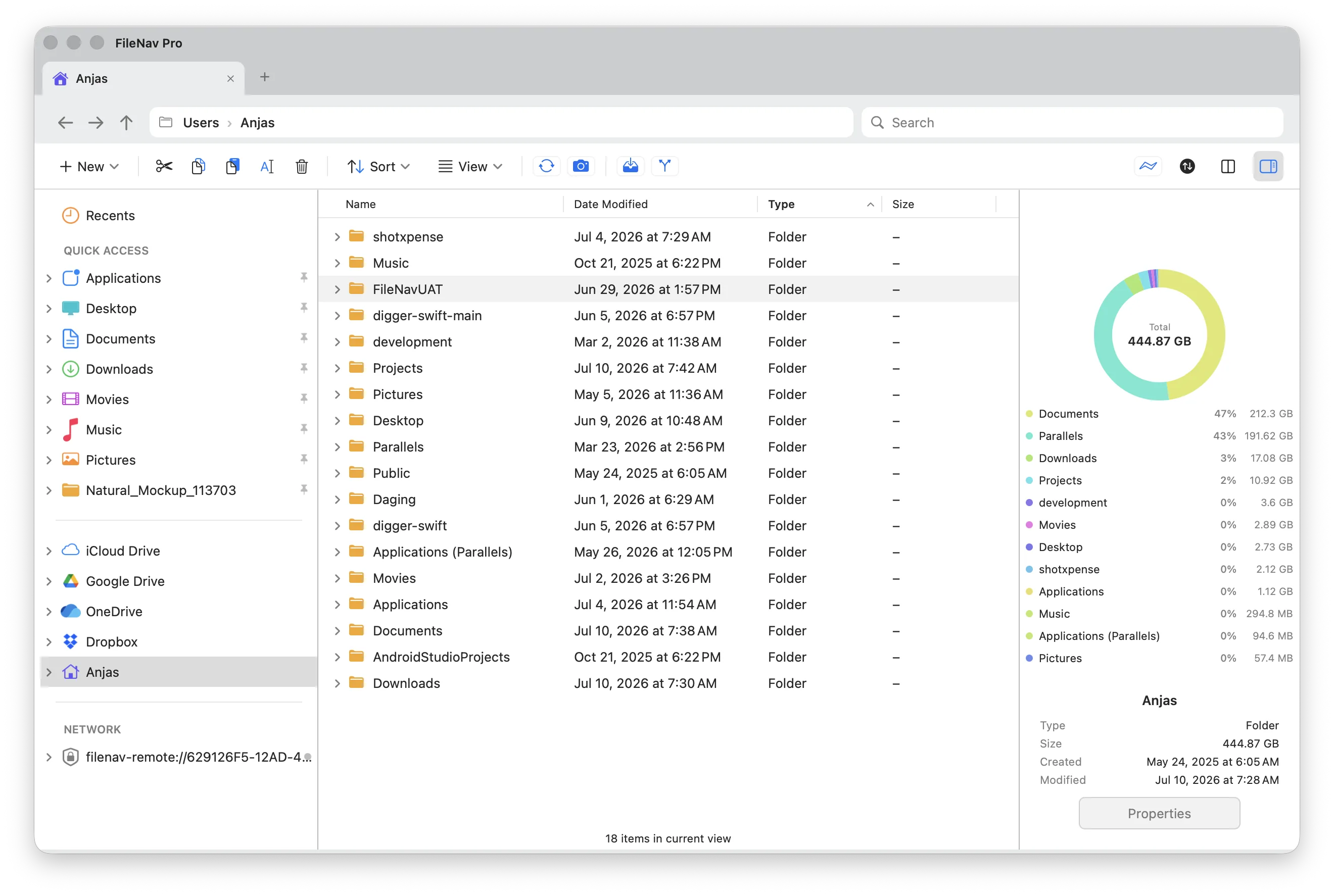
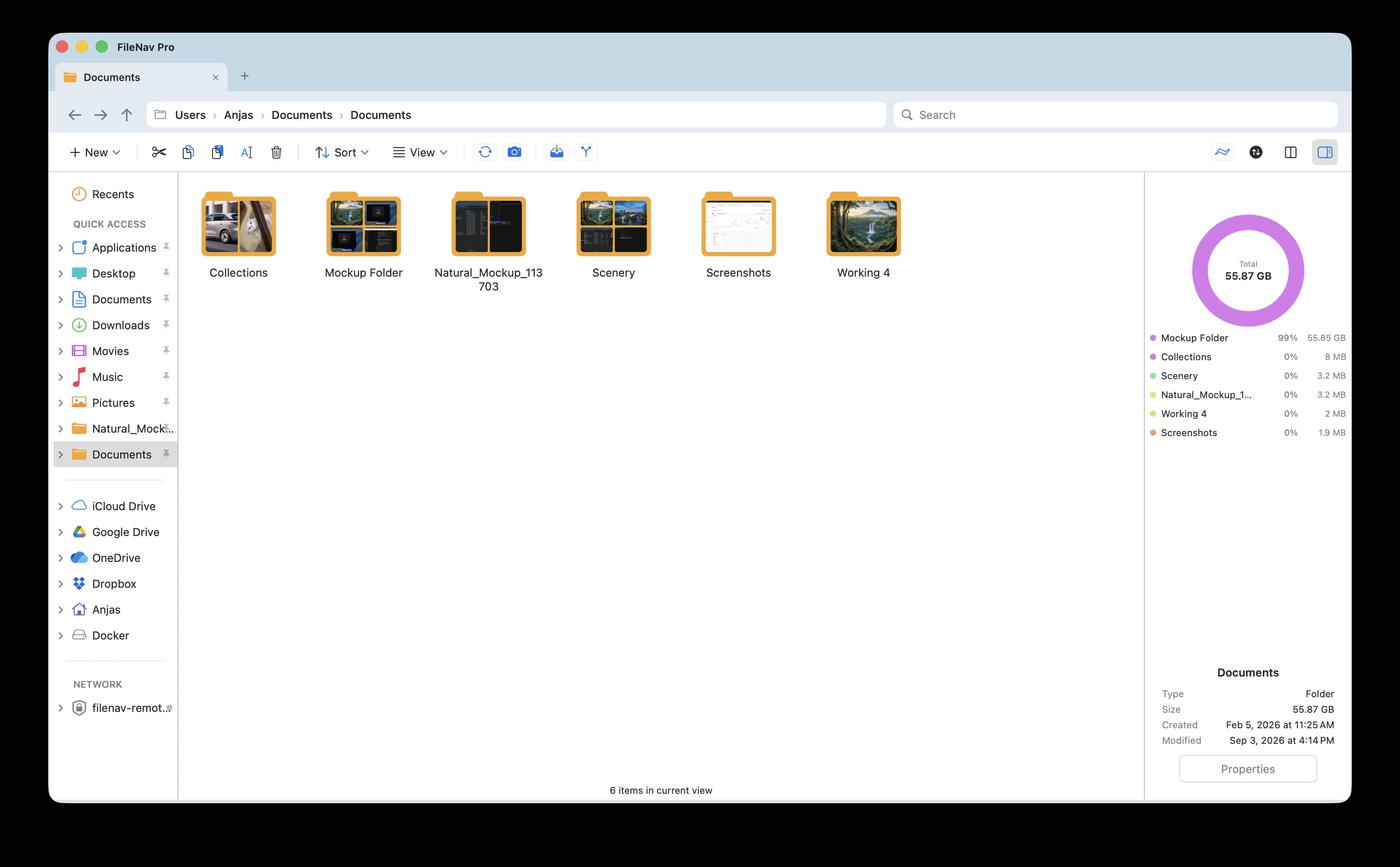
Details view with the built-in disk-usage visualizer
Your Muscle Memory, Respected
Switching to Mac shouldn't mean relearning how to manage files. FileNav honors the keyboard shortcuts and interactions you've built over years of Windows use.
Zero Learning Curve
Start being productive from day one. No need to unlearn years of muscle memory.
More Than a Finder Alternative
Dual-pane browsing, a folder tree, and a built-in disk visualizer — the power Finder simply doesn't offer.
Folder Tree-View
Navigate files with a familiar, highly responsive sidebar. Expand and collapse folders just like Windows Explorer.
Disk Visualizer
Instantly spot storage hogs with an interactive, drill-down disk usage chart. Know exactly where your space goes.
Dual-Pane Browsing
View source and destination side-by-side for seamless drag-and-drop transfers. No more juggling windows.
Breadcrumb Address Bar
Clickable path segments for easy folder access. Navigate up the hierarchy with a single click.
Questions Switchers Ask
The things people google at 1 a.m. after switching to a Mac.
Is there a Windows Explorer for Mac?
Not officially — Microsoft doesn't make Explorer for macOS. FileNav is the closest thing: a native Mac file manager that recreates the Windows Explorer workflow, with dual-pane browsing, an always-visible folder tree, an editable address bar, and the keyboard shortcuts Windows users expect.
How do I open files with Enter on a Mac?
In Finder you can't — Enter renames the file instead, and there's no setting to change it (the Mac shortcut to open is ⌘O). FileNav restores the Windows behavior: press Enter and the file or folder opens.
How do I cut and paste files on a Mac?
Finder has no ⌘X for files. The hidden method is to copy with ⌘C, then paste-and-move with ⌥⌘V. FileNav supports normal cut and paste from the toolbar, the right-click menu, and the keyboard — the way it works on Windows.
What is the best Finder alternative for Mac?
It depends on what you need. ForkLift and Path Finder are strong choices for long-time Mac power users. FileNav is built specifically for people who switched from Windows: it keeps the muscle memory you already have instead of asking you to relearn it, and adds dual-pane browsing, a folder tree, and a built-in disk visualizer.
How can I see what's taking up space on my Mac?
macOS only shows broad categories like "System Data", which you can't act on. FileNav includes a disk visualizer: select any folder and it charts what's inside by size, so you can click the biggest slice and drill down until you find the real culprit.
Does FileNav run on Apple Silicon?
Yes. FileNav runs natively on both Apple Silicon and Intel Macs, and requires macOS 12.4 (Monterey) or later.
Is FileNav a subscription?
No. FileNav is a one-time payment — $14.99 for FileNav, $29.99 for FileNav Pro — and you own it forever. The 14-day free trial includes all Pro features and needs no credit card.
Ready for a Mac That Just Works Your Way?
Download Filenav and experience file management the way it should be. Free to try with no commitment.
Requires macOS 12.4+ (Monterey or later) • Apple Silicon & Intel supported